Latest
Home / Player Hub / Guides / Hardware
The short version
- Warmth during a heavy game is normal. A temperature warning means stop playing and let the phone cool.
- Pick a frame rate your phone can hold for a whole session and ignore the highest selectable cap.
- Lower render workload one setting at a time and keep charging heat out of the picture.
- iOS 27 Adaptive Power and Low Power Mode can change performance, so check which one is active.
A game can run smoothly for five minutes and start stuttering halfway through a match. If the phone is getting hotter at the same time, thermal throttling is a likely cause. Phones cut performance to protect themselves when heat goes past their operating limits.
Aim for a frame rate that stays smooth and comfortable after the phone has been running for a while. The highest cap at launch tells you little about that.
First, tell normal warmth from a warning
Apple lists demanding games and wireless charging among the activities that can warm a device. Its iPhone and iPad guidance gives an ambient operating range of 0 to 35°C (32 to 95°F). That range describes the air around the phone.
A dimming screen, paused charging or a falling frame rate can be signs that the device is regulating its temperature, though each can have other causes too. If a temperature warning appears, stop playing. Apple's steps are to turn the device off, move it somewhere cooler away from direct sunlight and let it cool down. Samsung's advice for a phone that feels uncomfortably warm is to close all running apps, disconnect any chargers and stop using it until it cools.
A phone that keeps getting very hot during light use or charging needs troubleshooting with the manufacturer, and a damaged or swollen battery is a repair job. Samsung warns against holding a warm phone against your skin for long periods and against resting the phone or its charger on your body while it is plugged in. Its list of overheating causes also includes damaged USB cables and uncertified third-party chargers.
Choose a sustainable frame rate
| Game type | Starting point if heat is a problem | Adjustment |
|---|---|---|
| Competitive shooter or MOBA | 60 FPS if stable | Try a lower cap if performance drops; keep controls responsive. |
| Open-world RPG | 30 FPS or a supported intermediate cap | Raise it only if the phone stays comfortable and smooth. |
| Turn-based RPG or simulation | 30 FPS | Raise it only when the visual gain is worth the extra load. |
These are suggested starting points from MaxCrit, untested on specific phones. A phone that holds 120 FPS in a shooter may not hold it in an open-world game, and the display's refresh rate is a different number from the game's frame rate.
At 60 FPS a game aims to draw twice as many frames per second as at 30 FPS. Power use will not necessarily double, because the rest of the workload and the phone's power management also play a part. Android's guidance for game developers says that when a phone runs short of thermal headroom, a game can reduce its frame rate or lower fidelity.
Change the graphics settings that affect rendering
Keep your FPS cap fixed while you adjust graphics. Start with render resolution or resolution scale if the game offers it, then try lowering shadows, effects, particles and view distance one at a time. Google's Android developer documentation names these among the workload levers, but the best order depends on the game engine and the phone.
Do not automatically drop every setting to Low. In shooters, keep enough scene clarity to spot opponents; in exploration games, decide whether smoother movement or sharper distant detail matters more to you.
Use the same area or training mode for each comparison, since a crowded city and an empty room are very different workloads. If the game supports an FPS indicator, watch how it holds up over several minutes and ignore single peak values. Skip unofficial performance tools and anything that changes thermal limits.
Separate charging heat from gaming heat
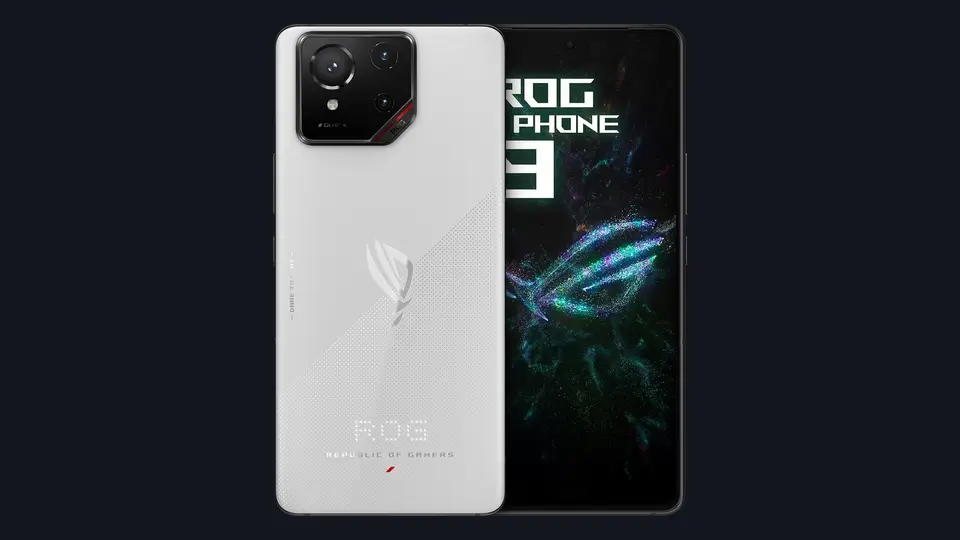
Try a session on battery power while you troubleshoot, and keep wireless charging out of it. If the phone stays noticeably cooler unplugged, a supported bypass mode could help with future plugged-in play. Samsung, for example, documents a gaming mode that pauses battery charging under set conditions, and ASUS lists Bypass charging in Game Genie on the ROG Phone 9. Our bypass charging guide covers which phones have it and how to switch it on.
Bypass charging does nothing about heat from the processor or screen. If the phone still overheats unplugged, a more powerful charger will not fix the workload problem.
Keep the device out of direct sunlight and use a comfortable brightness level. Samsung lists streaming video at maximum brightness among common causes of heat. If the case is particularly thick and the device can be handled safely without it, try removing it for comparison. Treat these as low-cost diagnostic changes with no guaranteed temperature drop.
Power settings on iPhone and Android
On an iPhone, Low Power Mode can be worth testing when battery life matters more than maximum responsiveness. On iPhone 15 or later it is in Settings > Battery > Power Mode, and on iPhone 14 or earlier in Settings > Battery. Apple says that on models with ProMotion it limits the display refresh rate to 60 frames per second, and it switches off by itself once the iPhone charges to 80%. In iOS 27, iPhone 15 Pro and later also have Adaptive Power, on by default on supported models. It can lower screen brightness and make performance adjustments on days of heavy use, and it can turn on Low Power Mode at 20% battery. If a game feels slower than usual, check Settings > Battery > Power Mode to see which of these is active. Competitive players may prefer normal mode with a lower in-game cap if it gives better control response.
On Android, power and gaming profiles differ by manufacturer. If you are already seeing heat-related slowdown, try a balanced profile before forcing a high-performance mode, and check that a battery-saving profile isn't capping the frame rate below what you want. Galaxy, Pixel, ROG and REDMAGIC phones each name and arrange these settings differently. Some gaming phones add dedicated cooling hardware, such as the dual-loop system in our REDMAGIC 12 Pro cooling report.
A repeatable troubleshooting routine
Start with the phone cool and working normally, pick a familiar game area and note your current settings. Play a short session with a lower FPS cap. If it runs more steadily, keep it. If not, lower the resolution or one graphics option and compare again after the phone has cooled. Repeat on battery power if you usually play plugged in, and change one thing per comparison so you know which adjustment helped.
Stop immediately if a temperature warning appears or the phone gets uncomfortable to hold. If you still see warnings with a lighter workload, normal room temperature and no charging, contact the manufacturer. No game session is worth overriding built-in safety controls.
Methodology: MaxCrit's suggested settings are a practical framework drawn from platform and manufacturer documentation. They are not device benchmarks, and MaxCrit did not test them on phones.
Sources
- Apple: If your iPhone or iPad gets too hot or too cold ↗primary
- Android Developers: Thermal API ↗supporting
- Android Developers: ADPF best practices ↗supporting
- Apple: Save battery life with Power Modes on iPhone ↗supporting
- Samsung Ireland: How to prevent overheating when using your Samsung Galaxy device ↗supporting
- Samsung UK: Pause USB PD charging when gaming ↗supporting
- ASUS ROG: ROG Phone 9 specifications ↗supporting
- REDMAGIC: REDMAGIC 12 Pro ↗supporting

That's the whole story. Want more? See the Player Hub