Latest
Home / Player Hub / Guides / Hardware
Key points
- Check the Mac App Store and publisher-supported desktop clients first.
- BlueStacks Air and MuMuPlayer for Mac run Android apps on Apple Silicon.
- iPhone Mirroring controls a game running on your iPhone and is unavailable in the EU.
- Verify game rules and performance before moving your main account.
Pick the wrong route onto an Apple Silicon Mac and you can end up with a game that launches but won't take your login, your purchases or your controls. These Macs play a surprising number of mobile games, yet getting an Android game onto a MacBook is a different job from running an iPad game. What matters is whether your game has a supported way onto macOS that keeps your account, purchases and preferred controls intact.
The publisher's desktop client or a compatible App Store release comes first. Without one, Android environments such as BlueStacks Air and MuMuPlayer for Mac can fill the gap. None of these routes guarantees that every mobile game runs, or that a publisher allows it in competitive play.
This guide compares the documented options as of November 25, 2026. MaxCrit has not benchmarked these applications on a Mac, so the performance section is a test plan for your own machine.
Choose the right way to run the game
| Route | What it runs | Who should use it |
|---|---|---|
| Official Mac game | A publisher-supported macOS build | Anyone whose game offers one |
| Mac App Store mobile app | Compatible iPhone and iPad releases | Players whose game is available for their Mac |
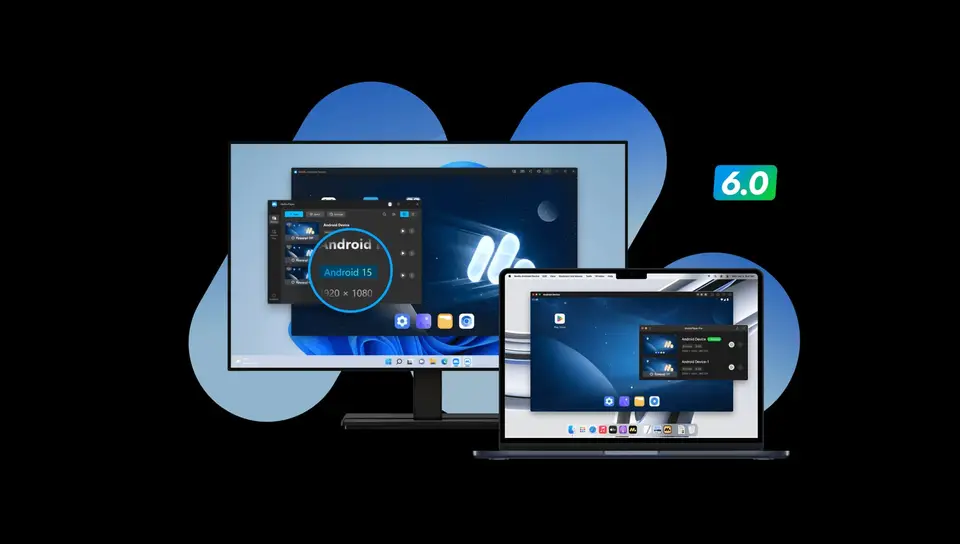
| BlueStacks Air | Android apps | Players seeking a Mac-oriented Android app player |
| MuMuPlayer for Mac | Android apps | Players comparing a second Android environment |
| iPhone Mirroring | An app running on your nearby iPhone | Owners of compatible devices in supported regions |
An M-series chip doesn't make every iOS game installable. Developers decide whether eligible apps are offered on Apple Silicon Macs. In the same way, a Windows Android emulator may have no compatible Mac release even when its website talks up Mac support somewhere else. Match the exact product name and supported hardware before downloading.
Install compatible iPhone and iPad games
Open the Apple menu and select About This Mac. Confirm that the system identifies an Apple chip. Then open the Mac App Store, search for the exact game and look for a compatible iPhone or iPad listing. Apple labels eligible mobile apps as Designed for iPhone or Designed for iPad. Check the listing's requirements, publisher name and region before downloading.
If the game shows up as a compatible mobile app, that is usually the simplest route: it runs on your Mac with no Android layer in between. You still need to confirm login support, control options and whether purchases carry over from your phone. A touch-only game can feel clumsy on keyboard and mouse even when it launches fine.
If the game is absent from the Mac App Store, check the publisher's official site for a dedicated desktop client. An Intel-only or Windows-only desktop build may have different requirements. Avoid installing an unrelated app with the same game name or a repackaged mobile installer from an unknown download site.
BlueStacks Air on Mac
BlueStacks Air is the company's Android app player for Apple Silicon. Its listed requirements are macOS 11 or later, M1 through M4 processors, 8 GB memory with 16 GB recommended, and 12 GB of free storage. The specification page dates from December 2024, which is why its chip list stops at M4.
Install Air from BlueStacks' own site, then use its app storefront to find the game. Install game updates normally and check the control mapping before entering a match.
MuMuPlayer for Mac
MuMuPlayer has its own Android environment built for Apple Silicon. Installation is the usual Mac routine: download the DMG installer, open it, read the policy prompts and install. The product has also been marketed under the MuMuPlayer Pro name, so look at the current Mac product page for the edition on offer, its requirements and any feature limits before you subscribe.
Having two runtimes is useful when a game crashes: try the other one, and you learn whether the problem is the game or the environment. Keep your comparison fair: use the same game build, graphics settings, render resolution and session length. A different default graphics preset can make an emulator look faster simply because it is rendering less detail.
Hold off on premium features until your actual game, login provider and controls all work. Reaching the title screen is only the first test. Load into a first fight, wake the Mac from sleep and sit through a game update before you pay.
What about PlayCover?
PlayCover is a community tool for running iOS apps on Apple Silicon, but it needs decrypted app files, which usually come from outside the App Store and can break a game's terms. We don't cover it for that reason. Stick to the Mac App Store, the publisher's own client or the Android players above.
Can you mirror your iPhone instead?
iPhone Mirroring lets a compatible Mac control an app running on a nearby iPhone. Nothing is installed on macOS: the phone keeps doing the work. For turn-based games or account chores it is handy if you already own the right devices, while latency, screen scaling and controls can make action games less comfortable.
iPhone Mirroring is still unavailable in the European Union, so EU readers need one of the other routes above.
Find a sustainable performance preset
Start with a modest resolution and a frame-rate limit the game and runtime support. Leave the highest-quality shadows, effects and render settings disabled while establishing a stable baseline. Keep the Mac on a hard surface with ventilation unobstructed. For a machine with 8 GB unified memory, close unnecessary browser tabs and other heavy applications before opening an Android runtime. Avoid treating the vendor's minimum memory figure as a guarantee for every game.
A Retina display does not require the game to render at its full physical resolution. For example, a 1920 × 1080 render target contains 2,073,600 pixels. A 2560 × 1440 target contains 3,686,400, approximately 78% more. This calculation compares pixel workload only. Actual FPS can respond differently. Some games will be limited by CPU work, translation overhead, memory pressure or a fixed frame-rate cap instead.
Use a short test matrix to decide whether more resolution or more FPS improves your experience.
| Test | Resolution (if supported) | FPS cap (if supported) | Purpose |
|---|---|---|---|
| A | 1280 × 720 | 30 | Establish a working baseline |
| B | 1280 × 720 | 60 | Test frame-rate headroom |
| C | 1920 × 1080 | 60 | Test higher render workload |
Run the same repeatable game scene for each test and record behaviour after several minutes of play. If the runtime has a frame-rate counter, use it alongside observations of stutter and input response. Check Activity Monitor's Memory Pressure and note if it rises while the game is open. Repeat the best preset in a longer session. All values in the table are proposed experiments, subject to game and runtime support.
Account safety and competitive games
A game that installs is not the same as a game the publisher lets you play there. PUBG MOBILE, for example, has explicitly warned against using unauthorized clients or emulator hacks to evade matchmaking. Other games have their own terms, input restrictions and anti-cheat policies. A runtime's compatibility listing does not override them. Use the mobile client or an explicitly supported PC route for games whose policies are uncertain.
Before migrating a long-running account, confirm that you can sign in through a publisher-supported login method and that the account is linked appropriately. Check whether account linking or purchases are platform-specific. Do not use automation macros or tools that alter competitive inputs. Keep your original phone installation until you have confirmed that progress and rewards are accessible through the supported route.
For broader account safety checks, see Are Android emulators safe?. If you're choosing software for a Windows machine instead, our Android emulator guide for PC gaming covers that separate decision.
The right Mac setup is the supported one that runs your game smoothly and keeps your account safe. Try the official client first, fall back to a documented Android runtime, and test any paid option against your own games before you buy.
Sources
- Apple Developer: Manage iPhone and iPad app availability on Apple Silicon ↗primary
- Apple Support: Use iPhone and iPad apps on Mac ↗supporting
- BlueStacks Support: Air system specifications ↗supporting
- MuMuPlayer Help: Installing MuMuPlayer for Mac ↗supporting
- Apple Support: iPhone Mirroring ↗supporting
- PUBG MOBILE: emulator detection avoidance ↗supporting

That's the whole story. Want more? See the Player Hub