Latest
Home / Player Hub / Guides
How to Play Gacha Games and Mobile MMORPGs on PC
How to play gacha games and mobile MMORPGs on PC: native clients, Google Play Games on PC, emulators, cross-save, controls, auto-play and multi-account rules.
The short version
- Many big gacha games and MMORPGs have their own PC clients with shared accounts, which beat any emulator.
- If there is no PC client, check Google Play Games on PC next, then a general emulator if the publisher allows it.
- Link your account before switching, keep auto-play within the game's own tools, and check the rules before running alts.
Gacha games and mobile MMORPGs are some of the best mobile games to play on a computer. Sessions are long, menus are dense, auto-play keeps running in the background, and a big screen makes character art and maps far easier to enjoy. There are three ways to do it, and the order matters: native PC client first, Google Play Games on PC second, an emulator last.
The game's own PC client
Many of the biggest titles in both genres now ship a proper Windows version that shares your account with the phone version:
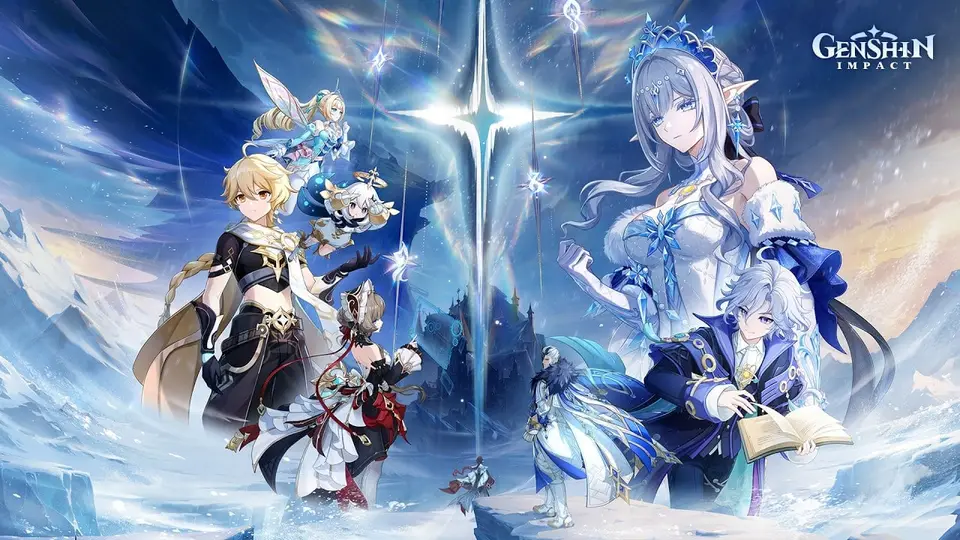
- HoYoverse games: Genshin Impact, Honkai: Star Rail and Zenless Zone Zero all have official PC clients, downloaded from their official websites or the HoYoPlay launcher.
- Kuro Games: Wuthering Waves has an official PC version.
- Albion Online: Sandbox Interactive's MMORPG is fully cross-platform, with the same world on PC, Mac, Linux and mobile.
- Other games: several newer gacha and MMORPG releases, including Diablo Immortal and Goddess of Victory: NIKKE, also have PC versions. Check each game's official site.
Why this is the best option:
- Better graphics: PC clients use PC graphics settings, higher resolutions and textures built for big screens.
- Real PC controls: proper keyboard, mouse and controller support instead of translated taps.
- Supported by the publisher: no account questions, and bugs get fixed by the people who make the game.
- Shared progress: log in with the same account and your characters, currency and pity counters carry over.
On most of these games, purchases made on PC and mobile go to the same account, though prices and payment methods can differ by platform.
Google Play Games on PC
If the game has no native client, check whether it is in Google Play Games on PC. Google's app runs approved Android games on Windows, with keyboard and mouse support, progress sync through your Google account and Google Play Points on PC purchases.
You need Windows 10 (v2004) or newer, hardware virtualization turned on, Windows Hypervisor Platform and an admin account. The catalogue is limited to games whose developers have brought them to the platform, so not every gacha game is there. Our Google Play Games on PC guide covers setup in detail.
A general emulator
For games with neither option, an emulator such as BlueStacks 5 or MuMuPlayer runs the Android version on your PC. Before you do:
- Check the publisher's policy. Most gacha publishers tolerate emulators for normal play, but a few restrict them, and rules change. Look at the game's terms or support pages.
- Pick a stable setup over a fast one. Long sessions matter more than peak frame rate. Our performance guide covers the settings.
- Mind your storage. Large gacha games and MMORPGs can need 20 GB or more with their downloads. Install on an SSD.
Before you switch: link your account
This step prevents most horror stories. Before playing on a second device:
- Link your game account to the publisher's own account, or to Google, Apple or Facebook, depending on what the game supports.
- Log in on the new device with that same login. Do not start a new guest account by accident.
- Check that your characters, currency and pity counters are there before deleting anything.
Guest accounts are usually tied to a single device. On an emulator, that device is the emulator instance, and deleting it can delete the account.
Controls that work for these genres
Gacha RPGs
- Turn-based games need only a few keys: one for auto-battle, number keys for skills, and Esc for back.
- Action gacha games play better with WASD movement, mouse camera, number keys for skills and Shift for dodge.
- Native PC clients come with full keyboard and mouse layouts, which you can usually customise in their settings.
MMORPGs
- WASD movement, mouse camera and 1 to 0 for skill slots.
- Keys for inventory, map, quest log and auto-quest buttons, so you are not clicking through menus.
- Our controls guide has full layouts and gamepad tips.
Auto-play, idle farming and alts
Mobile MMORPGs and many gacha games have built-in auto-battle, auto-quest or idle systems. Using these on PC is normal and allowed, because they are the game's own features. The line is crossed by:
- Third-party macros or bots that play for you beyond what the game offers.
- Running alts through multi-instance in games whose terms forbid multiple accounts.
- Leaving an emulator farming 24/7 in games that treat that as botting.
If you want to run more than one account, read the game's terms first. Where it is allowed, our multi-instance guide explains how to set it up without overloading your PC.
Which option for which game?
| Situation | Best route |
|---|---|
| The game has an official PC client | Use the PC client |
| No PC client, but it is on Google Play Games on PC | Use Google Play Games on PC |
| Neither, and the publisher allows emulators | BlueStacks 5 or MuMuPlayer on Windows, MuMuPlayer on Apple Silicon Macs |
| The publisher forbids emulators | Play on a phone or tablet |
Sources
- Genshin official site ↗primary
- Honkai: Star Rail PC FAQ ↗primary
- Albion Online official platforms ↗primary
- Google Play Games catalog ↗primary
- Google PC requirements ↗primary
- Zenless Zone Zero official site ↗primary
- Wuthering Waves official site ↗primary
- Diablo Immortal official site ↗primary
- Goddess of Victory: NIKKE official site ↗primary

That's the whole story. Want more? See the Player Hub