Latest
Home / Player Hub / Guides
Google Play Games on PC: requirements, installation and troubleshooting
Everything you need to run Google Play Games on PC: Windows and hardware requirements, step-by-step installation, sync with your phone, Play Points and fixes.
The short version
- You need Windows 10 (v2004) or newer, a Windows admin account, hardware virtualization and Windows Hypervisor Platform.
- Install it from play.google.com/googleplaygames and sign in with the same Google account as on your phone to keep progress in sync.
- PC purchases earn Google Play Points, and only games in Google's PC catalogue are available.
Google Play Games on PC is Google's own app for playing Android games on Windows. Unlike a general emulator, it only runs games that have been approved for PC, but those games get keyboard and mouse support, sync with your phone, and the same Google Play purchases and Play Points you use on mobile. For some games, including Supercell's Clash of Clans and Clash Royale, it is the publisher's official route to PC.
What you need
Google checks your PC during installation. These are the requirements it lists:
- Windows: Windows 10 (version 2004) or newer.
- Account: a Windows administrator account.
- Virtualization: hardware virtualization turned on in your PC's BIOS or UEFI.
- Windows Hypervisor Platform: a Windows feature you may be asked to turn on during installation.
- Storage: Google asks for the SSD to be set up as the main drive.
- Google Account: a personal Google Account. Some countries or regions also require age verification.
- Location: the app is only available in supported countries and regions, which Google lists on its support page.
If your PC misses a requirement, the installer tells you which one and stops, so you can fix it and try again. If your PC meets the minimum but not the recommended level, some games may not run well. You can filter the catalogue to hide games that may not run well on your PC, and games with problems show a performance warning on their details page.
One more limit: only the first Windows user who installed Google Play Games on a PC can open it and play.
Turning on virtualization and Windows Hypervisor Platform
Google Play Games on PC will not install without CPU virtualization turned on in the BIOS. The exact steps depend on your motherboard or laptop maker, and our virtualization guide walks through them.
Once virtualization is on, Windows Hypervisor Platform needs to be enabled too. The installer usually offers to do this for you. You can also turn it on yourself:
- Open the Start menu and search for Turn Windows features on or off.
- Tick Windows Hypervisor Platform.
- Click OK and restart when asked.
Older guides mention Intel HAXM as an alternative. Google dropped HAXM support on November 11, 2022. If you installed with HAXM, uninstall Google Play Games, reinstall it and turn on Windows Hypervisor Platform when prompted.
Installing Google Play Games on PC
- On your Windows PC, go to play.google.com/googleplaygames.
- Click Download.
- Open the downloaded file and follow the instructions. Installation takes a few minutes.
- Sign in with your Google Account.
- Browse the catalogue, install a game and start playing.
To play across devices, sign in with the same Google Account on your phone and your PC. Games that use Google Play Games sign-in, or their own account system, pick up where you left off.
Playing: controls, sync and multi-instance
Games on Google Play Games on PC are tested for keyboard and mouse. Some have full native PC controls, while others run in a compatibility mode that maps mouse clicks to taps. Games built for PC typically use the scroll wheel for zooming and offer keyboard shortcuts for common actions.
A few features worth knowing:
- Progress sync: sign in with the same account on phone and PC and your progress follows you.
- Play Points: purchases on PC earn Google Play Points, just like on your phone, and you can redeem points for perks and in-game items on PC.
- Multi-instancing: you can run more than one game, or the same game on different accounts, at the same time, where the game supports it.
- Refunds and security: purchases go through Google Play, so the usual Play refund process applies.
Clash of Clans and Clash Royale on PC
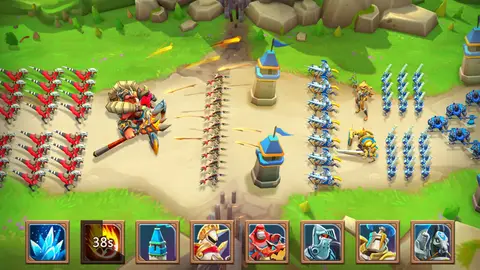
Supercell brought Clash of Clans and Clash Royale to PC through Google Play Games, and that is the route its support pages point to. Log in with your Supercell ID to keep your village or deck in sync with your phone. Because this is the publisher's own route, it avoids the account questions that come with third-party emulators.
Why your game might not be there
The catalogue only includes games whose developers have made them work on PC. Google's requirements for developers include:
- The game must be playable with mouse and keyboard, at least in compatibility mode.
- It must run at a stable frame rate: 30 FPS on lower-tier PCs and 60 FPS on higher-end ones, with no crashes over 20 or more minutes of play.
- It must support a 16:9 aspect ratio (or 9:16 for portrait games).
- Graphics must use OpenGL ES 3.2 or below, or Vulkan 1.1 or below.
If your game is missing, it has not been brought to the platform yet. In that case, check whether the game has a native PC version, or look at our guide to the other emulator options.
Fixing installation problems
Google suggests these steps if installation fails:
| Problem | What to try |
|---|---|
| Installer says a requirement is missing | Fix the item it names: Windows version, admin account, virtualization or storage |
| Asked to turn on Windows Hypervisor Platform | Allow it, or enable it in Windows Features, then restart |
| Installed earlier with HAXM | Uninstall, reinstall, and turn on Windows Hypervisor Platform when prompted |
| Installation keeps failing | Uninstall through Windows Apps and features, reinstall, and restart your PC |
| Still failing after all of that | Run the installer, click Send feedback, tick Send system information, and add "#gpginstall" to your message |
If games run but stutter, update your graphics drivers, close heavy background apps, and check that the game is installed on an SSD. Some games also have their own graphics settings for PC.
Google Play Games or a regular emulator?
Use Google Play Games on PC whenever your game is in its catalogue. It is the official route, it syncs with your phone, it earns Play Points, and it carries no risk of breaking a game's rules. Use a general emulator such as BlueStacks or MuMuPlayer only for games that are not available, and only where the publisher allows it.
Sources
- Google: Check if your PC can run Google Play Games on PC ↗primary
- Google: Install and set up Google Play Games on your PC ↗primary
- Google: Google Play Games on PC official page ↗primary
- Android Developers: Google Play Games on PC requirements for games ↗primary
- Supercell: Clash of Clans and Clash Royale on PC with Google Play Games ↗primary

That's the whole story. Want more? See the Player Hub